Windows - Installing Rancher Desktop
Rancher Desktop requires Windows 10, build 1909 or higher, WSL2, and administrative permissions. For Windows requirements, see Rancher Desktop installation requirements.
Administrative Permissions
You can use Rancher Desktop as a non-Admin user on a Windows machine; however, Admin intervention is required during installation for the following components:
- WSL2: Admin privileges are needed to install WSL2, which is an essential component of Rancher Desktop.
- Rancher Desktop Privileged Service - Admin privileges are required to install the Rancher Desktop Privileged Service, which allows applications or services running in containers to be on accessible on all interfaces on the host machine. You can skip the installation of the Rancher Desktop Privileged Service, but you will only be able to expose applications or services on
127.0.0.1.
To install Rancher Desktop:
- Do one of the following:
- Go to https://rancherdesktop.io/ to install the download for Windows. This is the preferred installation method.
- To install from from GitHub Releases, follow the Installing Rancher Desktop on Windows instructions.
To launch Rancher Desktop:
-
Open the
Rancher.Desktop.Setup.<version>.exefrom theC:\Users\<your-username>\Downloadsfolder. -
Accept the license agreement.
-
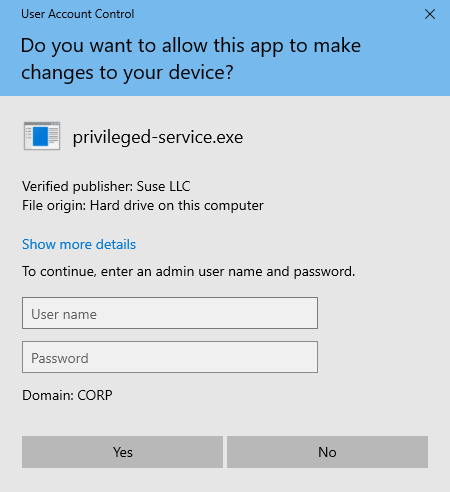
If you are installing over a prior release of Rancher Desktop, you will be prompted for admin credentials. Enter them to allow the app to make changes to your system.
-
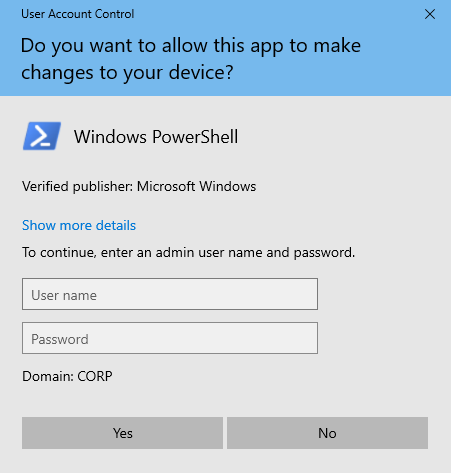
For new installs and reinstalls, you will be prompted for admin credentials. Enter them to allow Windows PowerShell to make changes to your system.
-
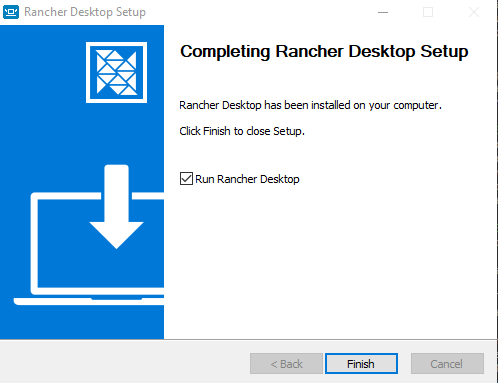
To complete the installation, select the Run Rancher Desktop checkbox to launch the application, then click Finish.
-
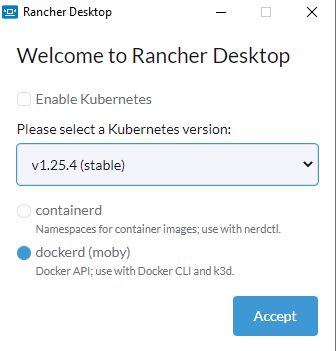
In the Welcome to Rancher Desktop window, do the following, then click Accept:
- Do not select Enable Kubernetes.
- Select dockerd (not containerd).
To configure Bridge IP:
There are network ranges used within CompanyName that conflict with Docker's internal network. As a result, network traffic will be unable to flow from local containers to those addresses.
-
To fix the network traffic flow issue, run the following from a command terminal in your
homedirectory:C:\Users\[your name]> echo { "bip": "169.254.0.1/16" } > daemon.json C:\Users\[your name]> wsl -d rancher-desktop -e mkdir -p /etc/docker C:\Users\[your name]> wsl -d rancher-desktop -e cp -f /mnt/c/Users/[your name]/daemon.json /etc/docker/daemon.json -
Restart Rancher Desktop by clicking File, clicking Exit in the Rancher Desktop GUI, then restarting the Rancher Desktop GUI.
Note
You must use the File→Exit option, not X.
To verify the installation:
The Docker and Docker Compose CLI should now be installed in the appropriate location on your system, under %HOMEDRIVE%\%HOMEPATH%\AppData\Local\Programs\Rancher Desktop.
-
Run the following commands in a new command prompt:
C:\Users\%USERNAME%>where docker C:\Users\%USERNAME%\AppData\Local\Programs\Rancher Desktop\resources\resources\win32\bin\docker.exe C:\Users\%USERNAME%\AppData\Local\Programs\Rancher Desktop\resources\resources\linux\bin\docker C:\Users\%USERNAME%>where docker-compose C:\Users\%USERNAME%\AppData\Local\Programs\Rancher Desktop\resources\resources\win32\bin\docker-compose.exe C:\Users\%USERNAME%\AppData\Local\Programs\Rancher Desktop\resources\resources\linux\bin\docker-compose -
You should be able to pull images from the public AWS ECR, such as localstack. Run the following in a shell with administrator privileges:
docker pull public.ecr.aws/localstack/localstack:latest